
In order to prevent overbooking, the Avvail team highly recommends creating an Access Rule that ensures that a certain number of seats are available within the Avvail booking window.
STEPS TO ADD AN ACCESS RULE FOR AVVAIL
1. Create an Audience for Avvail reservations.
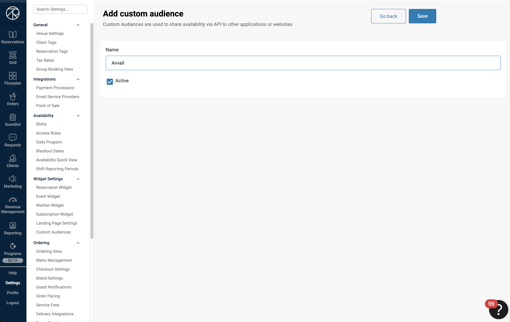
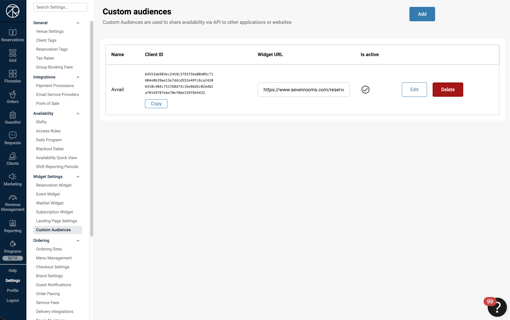
To do this, navigate to "Custom Audiences" in the Reservations tab and create a new Audience called "Avvail." This will automatically generate a custom link, which should not be shared.
2. (Optional) Create a Reservation Tag for Avvail reservations.
For more information on creating Reservation Tags, refer to this support article.
3. Navigate to the Reservations tab and click "Access Rules."
4. Create a new Access Rule and add the details of your Agreement.
Your Avvail Agreement stipulates days of the week, hours, an availability window, and seat commitments that you can add to your Access Rule. This will ensure that the appropriate number of reservations are set aside during the booking window and released back to your inventory if they are unclaimed (usually 72 hours in advance of the reservation date).
Here is an example of an Avvail Access Rule:
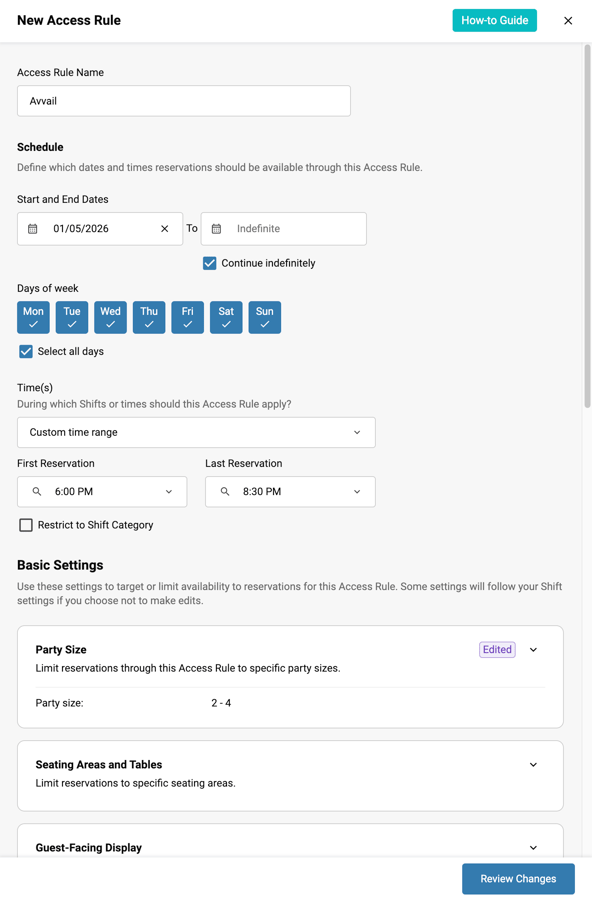
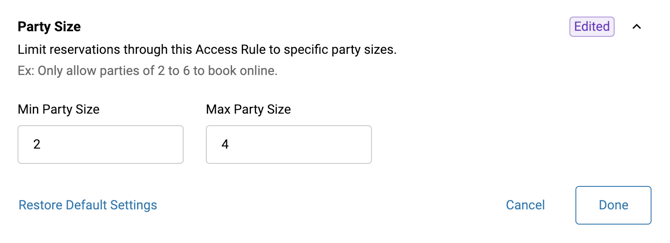
The party size should be restricted to 2-4 at this time (see below):
The booking window should be adjusted according to your Avvail Agreement's booking window (see below):
.png?width=670&height=360&name=Create%20New%20Access%20Rule%20(1).png)
The reservation/cover limit should be adjusted according to your Avvail Agreement's booking window (see below):
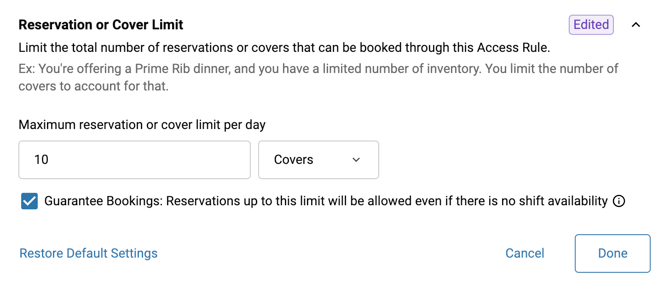
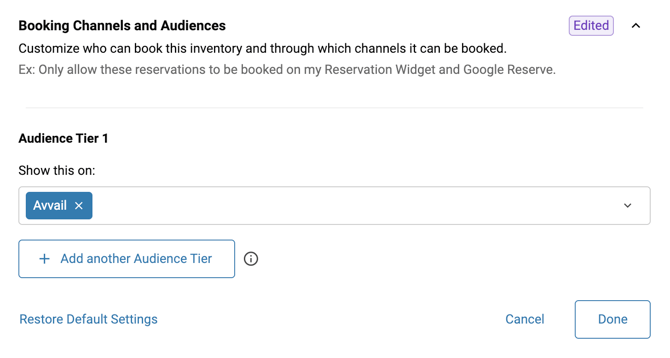
5. Select Avvail as the Custom Audience.
This will ensure that these reservations can only be booked when the Avvail Audience is selected by your team.
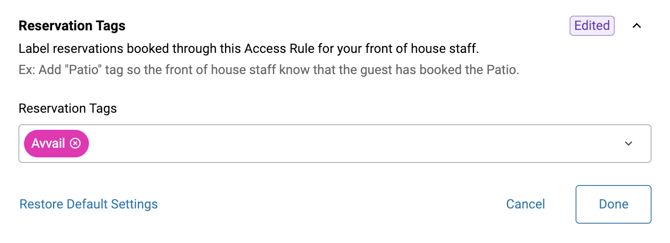
6. (Optional) Select the Avvail Reservation Tag.
This will ensure that all reservations created with the Avvail Access Rule will be automatically tagged.
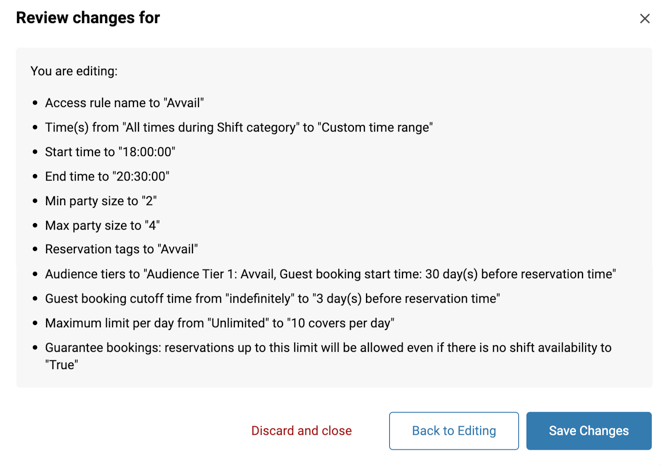
7. Review and confirm the details of your Access Rule.
For information on how to add an Avvail reservation to SevenRooms, with or without an Access Rule in place, refer to this support article.