
STEPS TO ADD RESERVATIONS TO SEVENROOMS
1. Launch SevenRooms and navigate to the Reservations page.
2. Click Add Reservation.
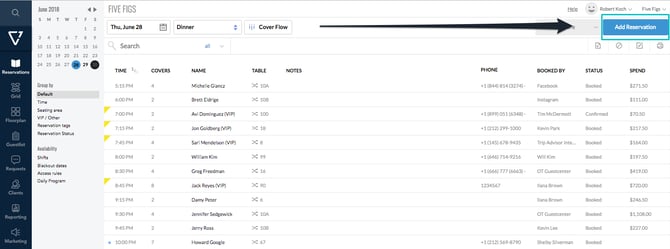
3. Enter the reservation details based on the Avvail reservation details.
Add the date and guest count. You can view the Avvail booking details in your dashboard by clicking into the reservation.
4. If using Access Rules for Avvail reservations (highly recommended), click Show Access Rules and select the appropriate Audience.
For more information on setting up an Access Rule for Avvail reservations, refer to this support article.
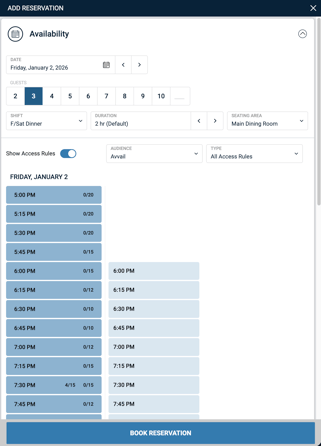
5. Select the reservation time based on the Avvail reservation details.
6. Enter the guest's name and click "Add as New Client."
Enter the avvail.id email address and do not enter a phone number.
.png?width=316&height=419&name=Create%20Reservation%20Add%20Client%20(1).png)
7. Check "Override: do not enforce required payment" if your venue requires prepayment for reservations.
8. If using Reservation Tags for Avvail reservations, select the appropriate Tag.
For more information on setting up a Reservation Tag for Avvail, refer to this support article.
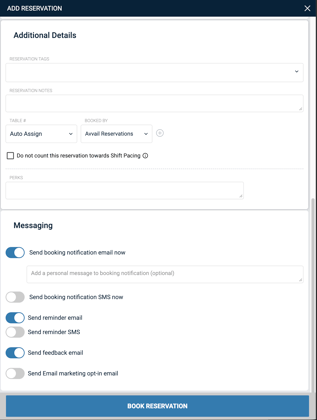
Finalize the reservation and accept it in your Avvail dashboard.
For more information on how to accept reservations, refer to this support article.