---
title: What if a guest cancels directly rather than through Avvail?
description: "This article describes how to handle reservations that are canceled by the guest directly through the restaurant via phone, email, or in person. This method includes using a special \"Canceled\" button in the dashboard to ensure the reservation is removed from the dashboard."
---
[Skip to content](https://avvail.com/support/what-if-a-guest-cancels-directly-with-us-rather-than-through-avvail#main-content)
English
Show submenu for translations

Open main navigation
Close main navigation
- English
Show submenu for translations
- Contact us
Contact us
How can we help you?
- There are no suggestions because the search field is empty.
1. [Restaurant Resource Center](https://avvail.com/support?hsLang=en)
2. [FAQs](https://avvail.com/support/faqs?hsLang=en)
3. [Cancellations & No Shows](https://avvail.com/support/faqs?hsLang=en#cancellations-no-shows)
# What if a guest cancels directly rather than through Avvail?
## If a guest calls, emails, or walks in to cancel an Avvail reservation, you must remove the reservation from your dashboard.
Most cancellations will be handled through Avvail and shared with you via email and in your dashboard. For more information on handling cancellations through Avvail, refer to this [support article](https://avvail.com/support/managing-canceled-reservations?hsLang=en).
However, if a guest notifies your restaurant of a cancellation, there is a way to cancel the reservation from your dashboard. This method should only be used if the guest cancels with you directly.
#### STEPS TO CANCEL A RESERVATION
##### **1. Ensure that the reservation has been confirmed.**
In order to cancel a reservation, it cannot have a status of "Pending." In the[Incoming Reservations](https://dashboard.avvail.com/incoming) tab of the dashboard, ensure that the check mark next to the reservation has been clicked and the reservation is in the "Accepted" section.
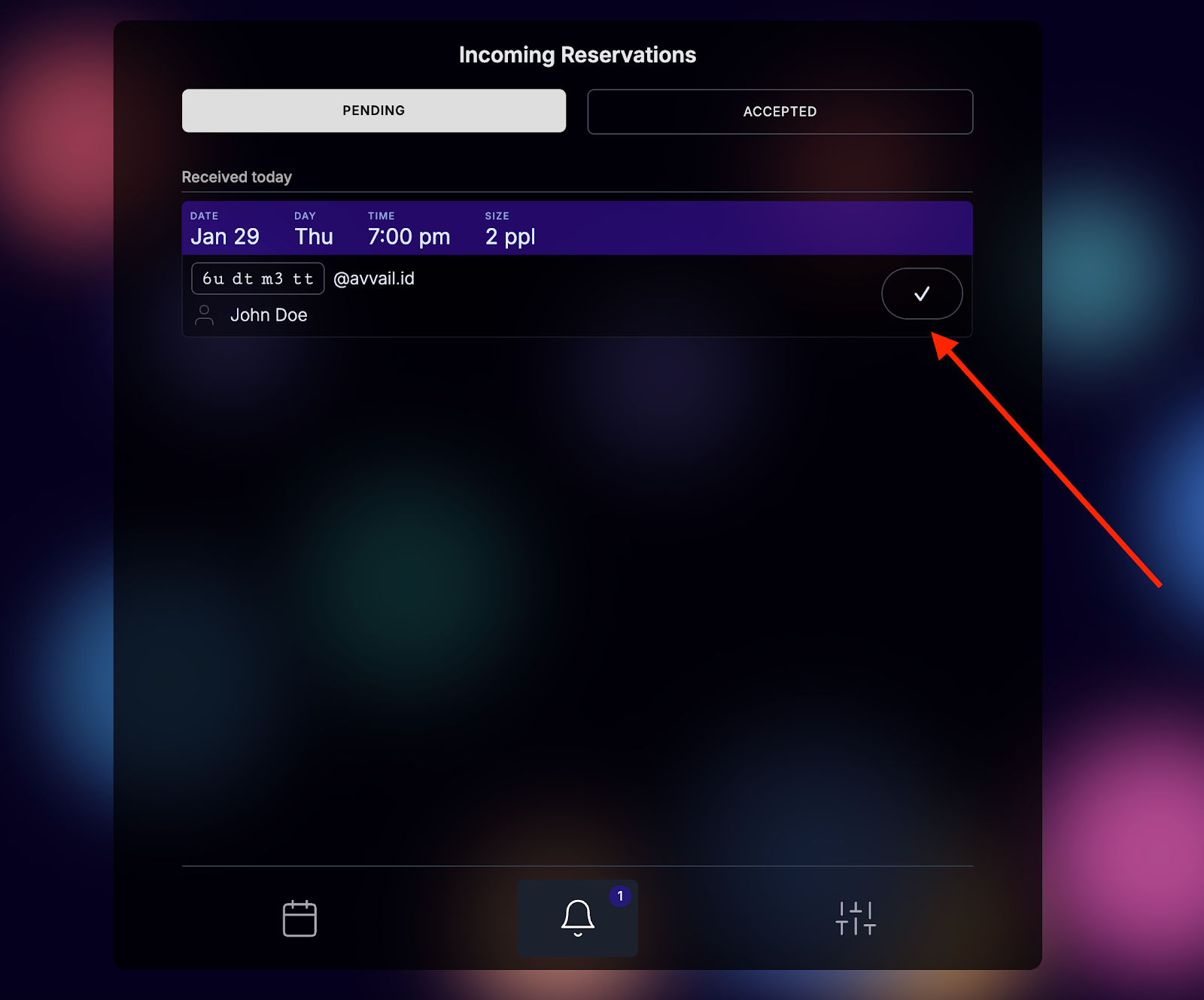
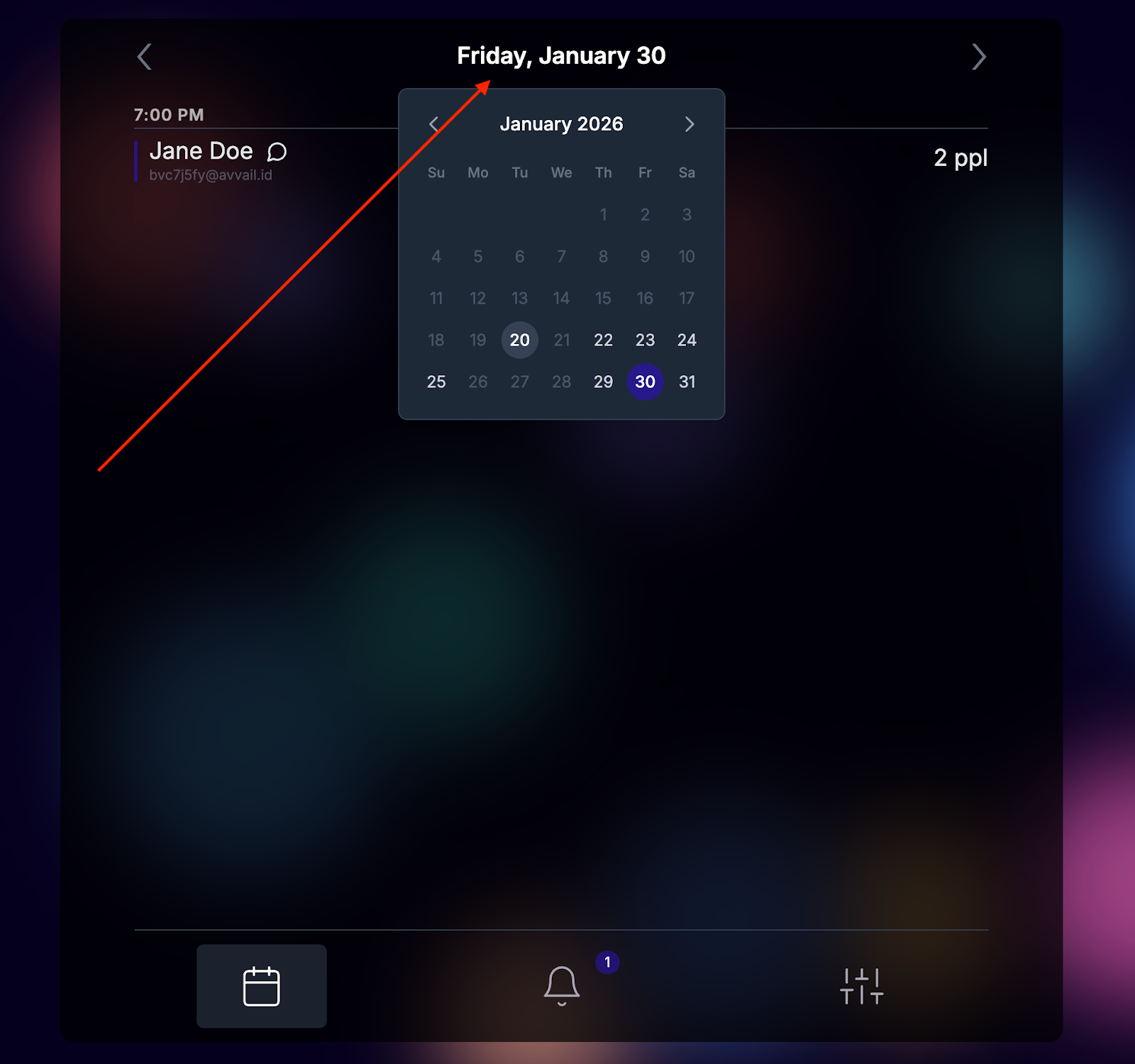
##### **2. In the**[**Daily Calendar**](https://dashboard.avvail.com/) **tab of your dashboard, locate and click into the reservation you need to cancel.**
You can quickly jump to the date of the reservation by clicking on the date at the top of the screen.
##### 3. Click "Canceled" to remove the reservation from your dashboard.
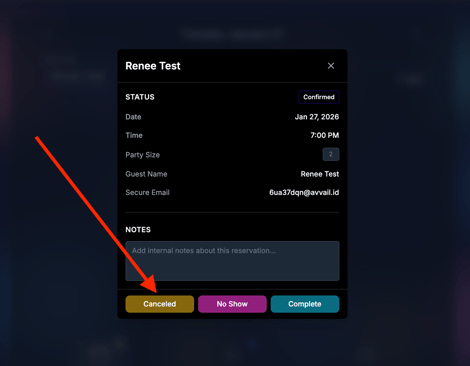
NOTE: This action is irreversible, so please exercise caution when using this feature. Additionally, please do not use this method to decline reservations on busy days - for more information, refer to this [support article](https://avvail.com/support/what-if-my-venue-cannot-accommodate-an-avvail-reservation?hsLang=en).
- [Account Settings](https://avvail.com/support/account-settings?hsLang=en)
- [Managing Reservations](https://avvail.com/support/managing-reservations?hsLang=en)
- [Reporting](https://avvail.com/support/reporting?hsLang=en)
- [TMS Setup](https://avvail.com/support/tms-setup?hsLang=en#main-content)
- [OpenTable](https://avvail.com/support/tms-setup?hsLang=en#opentable)
- [Resy](https://avvail.com/support/tms-setup?hsLang=en#resy)
- [SevenRooms](https://avvail.com/support/tms-setup?hsLang=en#sevenrooms)
- [FAQs](https://avvail.com/support/faqs?hsLang=en#main-content)
- [Terms of Agreement](https://avvail.com/support/faqs?hsLang=en#terms-of-agreement)
- [Cancellations & No Shows](https://avvail.com/support/faqs?hsLang=en#cancellations-no-shows)
[](https://avvail.com?hsLang=en)
[mailto:email@email.com](mailto:email@email.com)
Copyright © 2025, Guest.Tech