
To protect your restaurant from overbooking, we recommend setting aside inventory in Resy. This is a completely optional process, and requires a subscription to Resy's Platform 360. However, we highly recommend setting aside inventory on dates that you anticipate to be fully booked.
STEPS TO CREATE AN EXCLUSIVE GROUP FOR AVVAIL RESERVATIONS
1. Create an “Avvail Concierge” tag
For more thorough guidance, refer to this Resy support article.
- Click your restaurant name in the top left corner
- Navigate to Settings > Tags
- Click the Guest Tags or Visit Tags tab
- Click on an existing guest tag to edit or select Create ___ Tag to put a new tag in place
- When creating or editing a guest tag, select Concierge to designate the tag as a concierge tag

2. Create an Avvail exclusive group
For more thorough guidance, refer to this Resy support article.
- In your ResyOS Dashboard, click "Guests" from the left-hand menu options
- Click "Exclusive Groups"
- Click “Create a Group” to get started
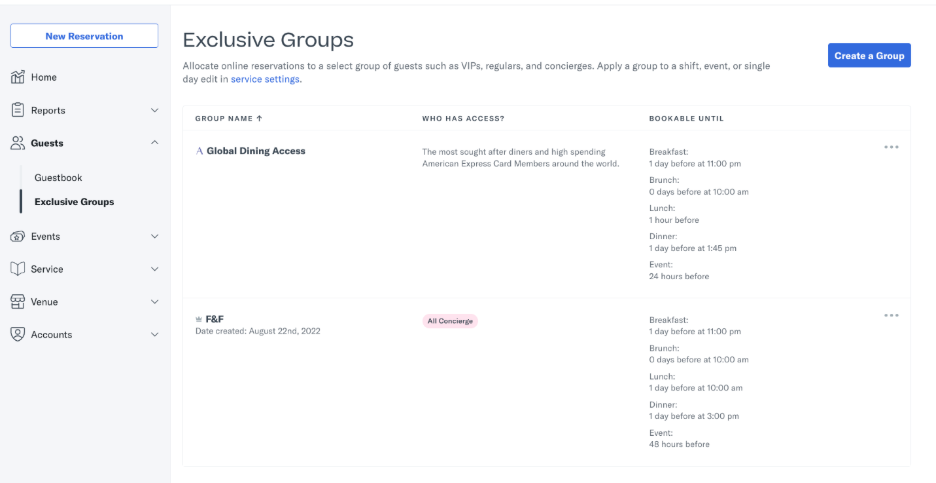
- Name the group (we recommend naming it Avvail). This is an internal name that will be listed in your availability settings when applying the group to your shifts
- Click on the Avvail Concierge to assign to the group
- Add "72 hours before reservation time" as the expiration time
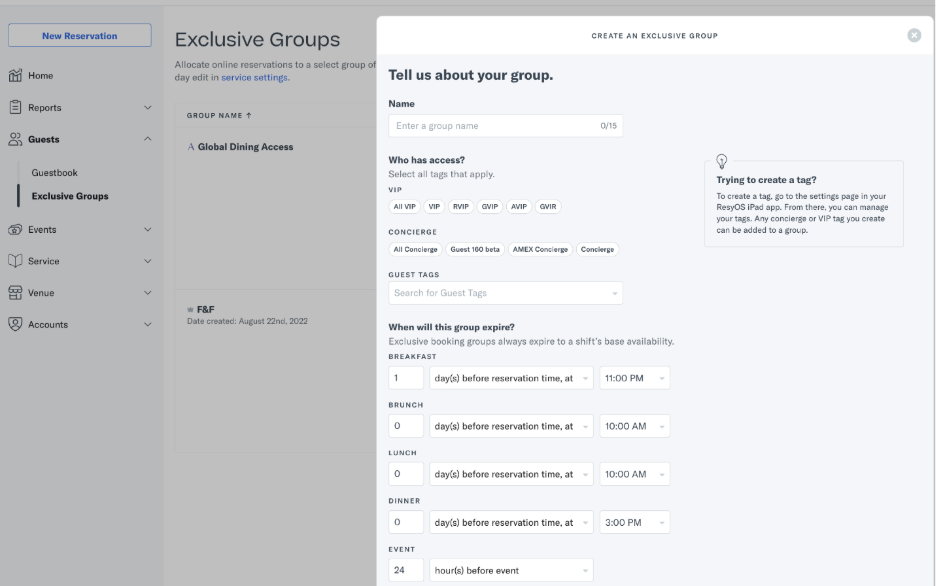
- Click “Create Group” in the bottom-right corner
NOTE: When the expiration time elapses, the table will return to the base availability you have set up for the shift.
3. Add the Avvail Exclusive Group to your shifts
Use the Service Settings in the Resy dashboard to assign your channels to a recurring shift or as a single day shift.
Applying groups to your recurring shifts:
- First, you'll log on to the Resy dashboard using Chrome
- Click “Service” from the left-hand menu options
- Click "Shift Settings" from the drop-down menu options
- Click the three horizontal dots on the shift and select “Edit Shift”
Applying groups to a single day:
- Click “Service” from the left-hand menu options
- Select “Calendar” from the drop-down
- Click on the date you'd like to edit
- Select “Single Day Edit” or
- From “Step 3 Availability” in the shift editor, click “More Customization”
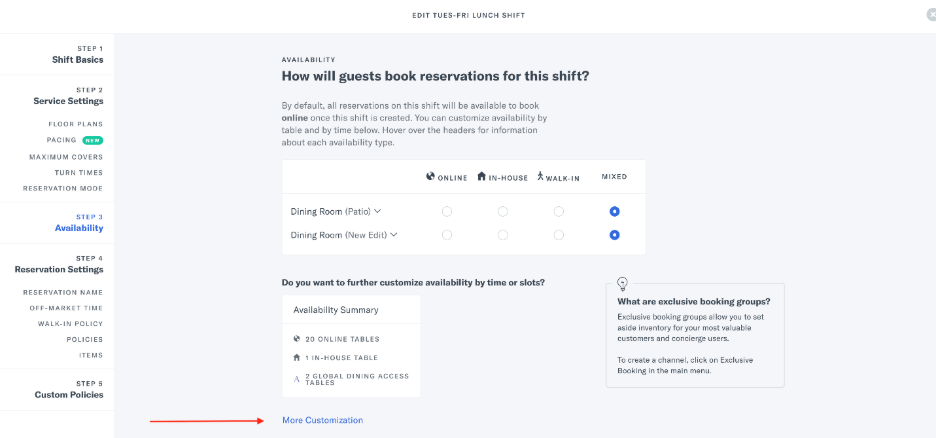
- Select the tab labeled “Exclusive Groups” on the top right. This section will display the table attributes you have set up as the base availability for reference (i.e., Online, In-House, or Walk-In)
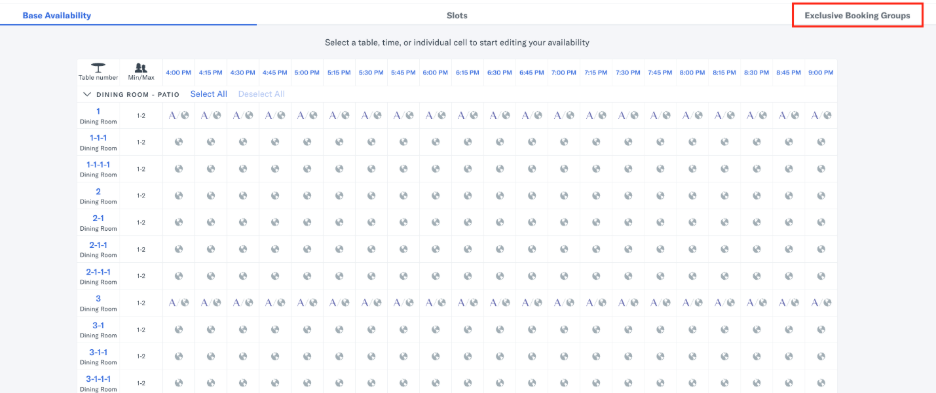
- Click a table number or select specific times on a table throughout the shift and choose Avvail Concierge from the groups you have set up on the left side panel. From the side panel, you can also edit the base availability to online or in-house if you choose.
NOTE: When a group expires, the tables will always default to the base availability applied to that shift.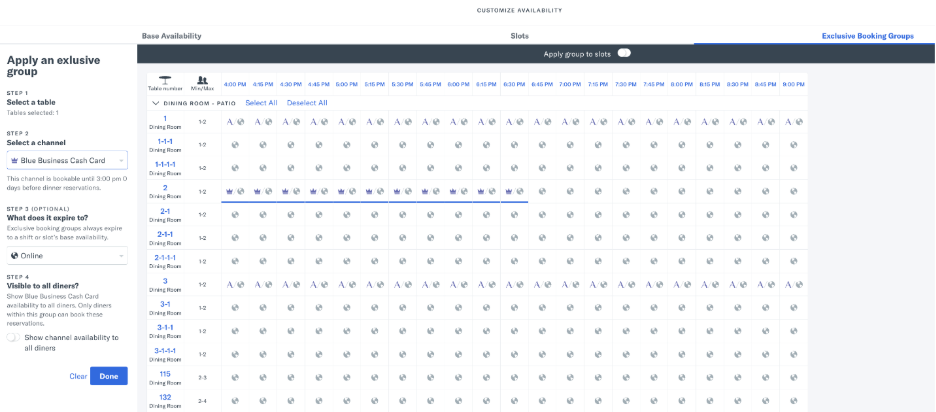
-
Click “Update Availability” in the bottom-right corner and “Update Shift” to save
For information on how to add an Avvail reservation to Resy, with or without an Exclusive Group in place, refer to this support article.