---
title: Setting availability rules
description: How to create and leverage availability rules in the restaurant dashboard.
---
[Skip to content](https://avvail.com/support/setting-availability-rules#main-content)
English
Show submenu for translations

Open main navigation
Close main navigation
- English
Show submenu for translations
- Contact us
Contact us
How can we help you?
- There are no suggestions because the search field is empty.
1. [Restaurant Resource Center](https://avvail.com/support?hsLang=en)
2. [Account Settings](https://avvail.com/support/account-settings?hsLang=en)
# Setting availability rules
## Customize your available table sizes and reservation times.
Your Agreement stipulates that a certain number of seats be made available for Avvail reservations each night. The seat number, days of the week, and timeframe cannot be adjusted, but you can choose the arrangement of your table allocations by following these instructions.
There will be default allocations set for you, but you are always free to make adjustments. We highly recommend exploring flexible availability to boost bookings, especially on weekdays.
#### STEPS TO SET AVAILABILITY RULES
##### 1. Navigate to the Availability page on the **[Settings tab](https://dashboard.avvail.com/settings)** of your dashboard.
##### 2. Review your seat commitments.
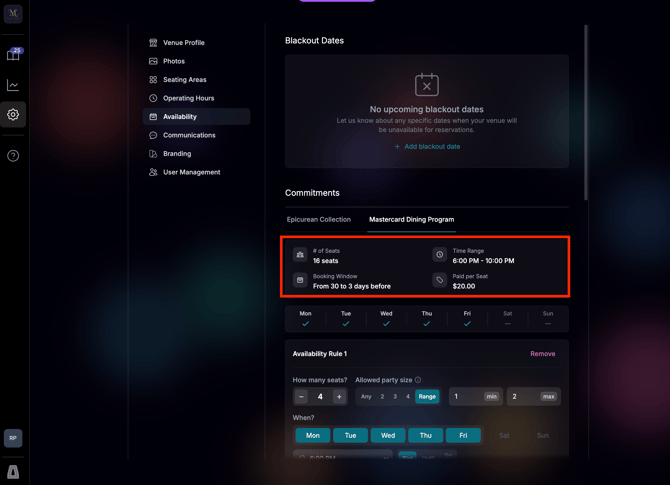
Making a change to your seat commitment, time range, or any other information captured here requires a change to your agreement and must be approved by the Account Owner and Mastercard.
##### 3. Create availability rules
You can choose to to leave availability open, create a single access rule for your entire seat commitment, or create different rules for different groups of seats. You can be as strict with your allocated table sizes and times as you would like, or you can leave the availability open and allow guests to choose their preferences.
###### **Flexible Availability**
You can leave your availability flexible by not adding any availability rules, either on every day or just certain days. A purple ring symbolizes flexible availability and no rules set for a particular day.
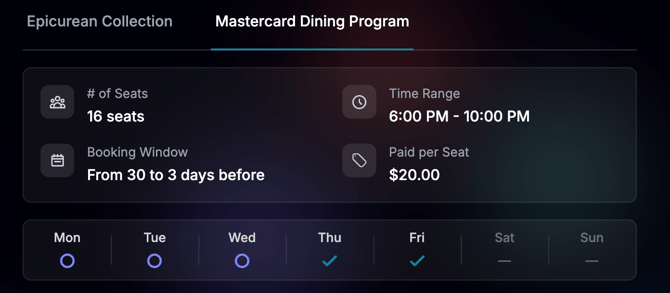
This means that guests can book any table size between 1 and the maximum number of seats in your daily allocation (e.g. 16 in the above example) at any time within your time range (e.g. 6:00PM-10:00PM in the above example) in 15 minute increments.
Leaving flexible availability may lead to higher seat utilization. You may also choose to set availability rules only on days that you prefer to have stricter control over table times, sizes, or seating areas (such as weekends or busy days).
###### **Availability Rules**
The components of availability rules are outlined below.
- **How many seats?**
- This field allows you to choose how many of your allocated seats this rule will apply to. Each day's rules must add up to your committed seats. If not, the deficit or surplus will be indicated on each day with an under- or over-allocated seat count.
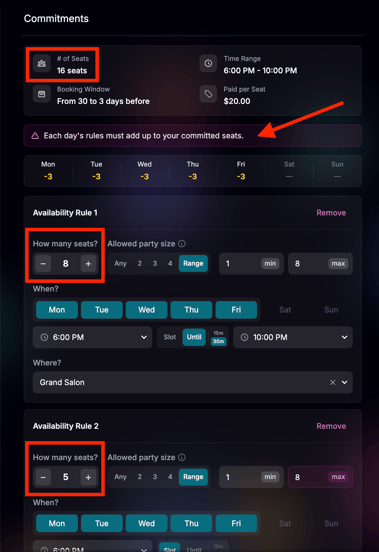
- **Allowed party size**
- **Any** — no limit; any party size up to the number of seats offered
- - **Set size** (e.g. 2, 3, 4) — only parties of exactly that number
- **Range** —a minimum and maximum (e.g. a range of 1-4 allows single diners, 2-tops, 3-tops, and 4-tops). Also how you pick 1 or other exact sizes.
- **When?**
- **Days of the week** — which days of the week this rule applies to (within the days stipulated in your agreement)
- **Time range** — which timeframe this rule applies to (within the hours stipulated in your agreement) - does not apply if "Slot" is selected
- **Slot** — limits tables to a specific time slot
- **Until** — allows any time in the given timeframe to be booked for these seats (in 15 or 30 minute increments based on your selection)
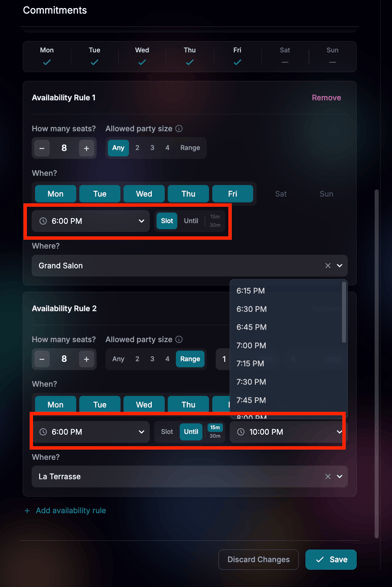
- **Where?**
- This field allows you to choose a seating area to apply to only these seats. If left unselected, no seating area is specified on the booking page.
- On any one day, a given time window must be either split across seating areas or left unspecified — not both.
If your restaurant was onboarded prior to June 8, 2026, your previous availability for 2-tops and 4-tops at specific times is still in place and will appear in your dashboard as new, strict availability rules. Some examples of previous arrangements adapted to the new updated Availability structure can be seen below:
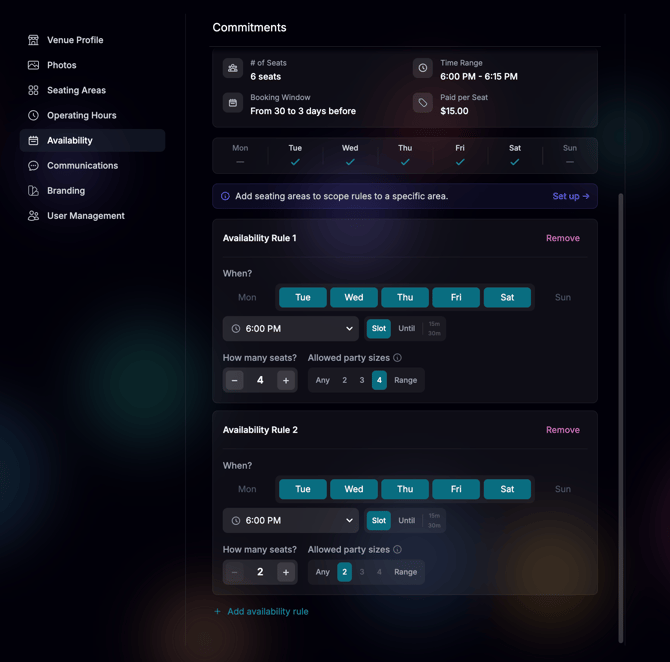
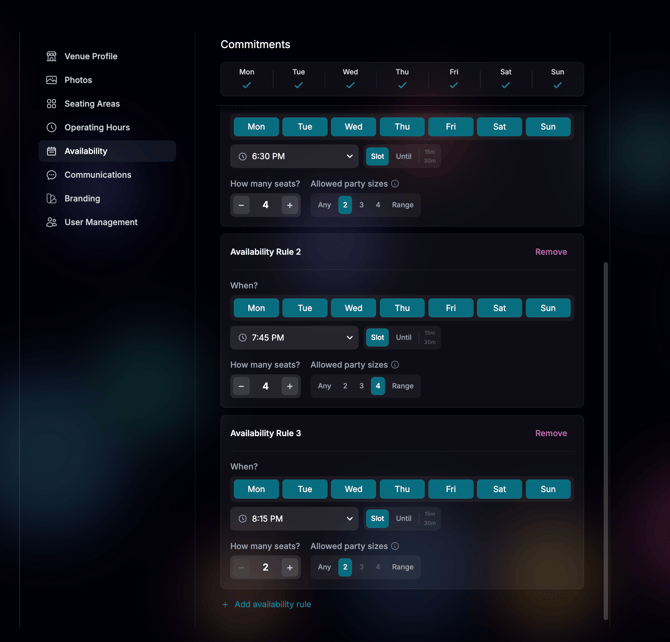
Also keep in mind that you are obligated to fulfill all reservations made within the booking window of your agreement. Reservations open and close according to your agreement's booking window, shown on the Availability page (typically from 30 days to 3 days before the reservation date), and you can add blackout dates to block reservations on days your restaurant is closed. You can add blackout dates at the top of the Availability page. For more information on blackout dates, refer to this [support article.](https://avvail.com/support/adding-blackout-dates?hsLang=en)
##### 4. Click "Save" to confirm your changes.
You will be unable to save if there is an error in any of your availability rules. Any errors will be highlighted in pink. The different types of errors are:
- Under- or over-allocated seats on any given day
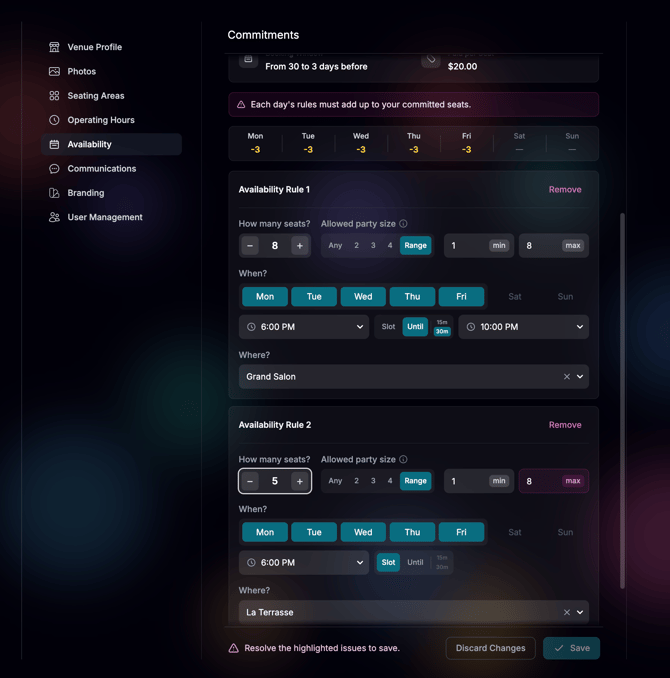
Resolution: Add or remove seats for the availability rules applying to the days producing errors.
- Seating areas only assigned to some rules for the same time window on the same day
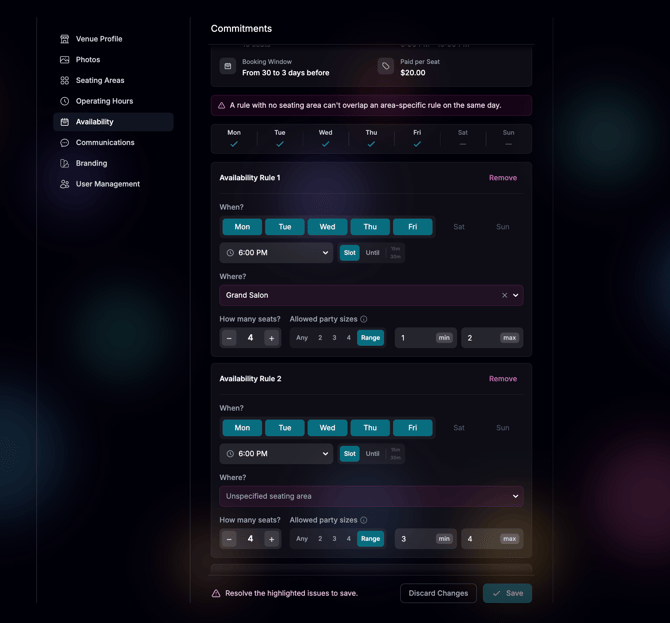
Resolution: Add or remove seating areas for the availability rules producing errors.
- (Non-Blocking) Certain seats made mathematically unbookable
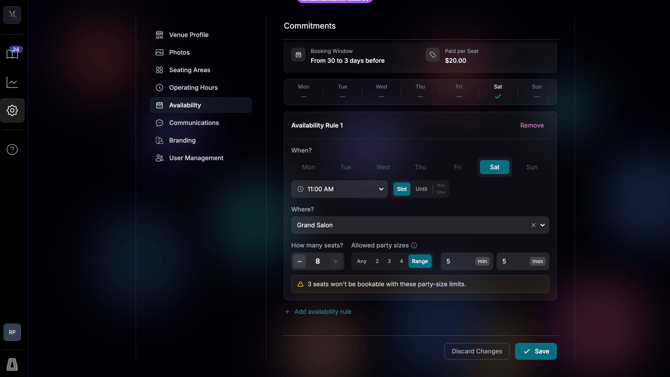
Resolution: Adjust allowed party sizes to be divisible by the total number of seats in the rule
- [Account Settings](https://avvail.com/support/account-settings?hsLang=en)
- [Managing Reservations](https://avvail.com/support/managing-reservations?hsLang=en)
- [Reporting](https://avvail.com/support/reporting?hsLang=en)
- [TMS Setup](https://avvail.com/support/tms-setup?hsLang=en#main-content)
- [OpenTable](https://avvail.com/support/tms-setup?hsLang=en#opentable)
- [Resy](https://avvail.com/support/tms-setup?hsLang=en#resy)
- [SevenRooms](https://avvail.com/support/tms-setup?hsLang=en#sevenrooms)
- [FAQs](https://avvail.com/support/faqs?hsLang=en#main-content)
- [Terms of Agreement](https://avvail.com/support/faqs?hsLang=en#terms-of-agreement)
- [Cancellations & No Shows](https://avvail.com/support/faqs?hsLang=en#cancellations-no-shows)
[](https://avvail.com?hsLang=en)
[mailto:email@email.com](mailto:email@email.com)
Copyright © 2025, Guest.Tech