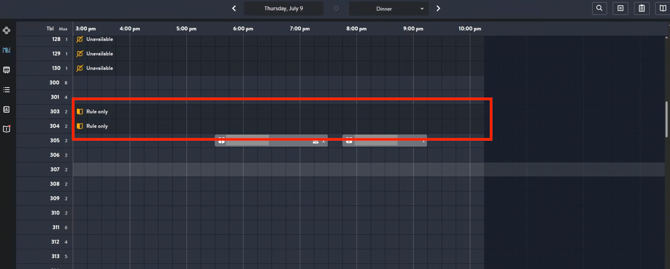
In order to prevent overbooking, the Avvail team highly recommends creating an Access Rule that ensures that a certain number of seats are available within the Avvail booking window.
STEPS TO ADD AN ACCESS RULE FOR AVVAIL
1. Create an access rule.
- Log in to the OpenTable for Restaurants website.
- Open the menu and select Availability Planning.
- Select the Settings and rules tab.
- In the Access rules section, select Create rule.
2. Add guest and messaging details to your rule.
Fill in the rule details:
- Rule name: Avvail (only your staff will see this)
- Guest targeting: Select Anyone with a link (this link will not be shared, this is just the best method to set aside tables)
- Booking message for link access: Choose to display the default welcome message on the screen when guests book (no guests will see this since all tables will be booked via Avvail)
- Booking payment policies: Choose to waive credit card holds and deposits.
Select Continue. Your work won't save if you leave this page before selecting the Continue button.
3. Choose what type of inventory you want to gate and customize the availability.
Access windows apply to the shift periods associated with the access rule.
- Select the Add new dropdown and choose Shift.
- Pick the shift you want the rule to apply to in the pop-up window (Add multiple shifts)
- Select Add table(s) to choose which tables and combinations this rule should apply to for this shift. Select Add to save.
4. Specify the availability guests can access
- Use the Release column to release the table(s) from the access rule 3 days before the start of the shift. When released, tables will return to the availability type settings of the default shift or special day.
- Choose the default dropdown setting of Rule only.
- Repeat steps 3 - 6 for any additional tables or groups of tables.
5. Set booking windows for each guest group
Decide when each group gains access to the inventory and when bookings will no longer be offered.
- Select the Customize access button to customize the booking window and booking cutoff for each guest group. Set the booking window to 30 days in advance (or whatever your booking window is set to in your agreement) and set a booking cutoff time for each group to stop access 72 hours in advance of the reservation time.
- Select Save.
6. Publish the access rule
- The rule information and details will display in the pop-up window. Review your rule details and make sure the correct shifts and inventory are linked.
- Select Save and close to confirm that the rule and experience are linked.
- Select Go to publish to publish your availability to begin offering exclusive reservation times to valued guests, followed by the Publish now button.
The seats committed to Avvail are now unbookable until they are released 72 hours in advance (if unbooked). Your team can book reservations from within this access rule.
HOW TO BOOK OVER AN ACCESS RULE
In order to book over an access rule, you must book reservations in the Timeline view at the tables set aside for Avvail. For example, if you set aside tables 303 and 304 for Avvail, they will be marked as "Rule only" tables in the Timeline view. You can create a reservation from this page by clicking the time you would like to book and entering the guest details.