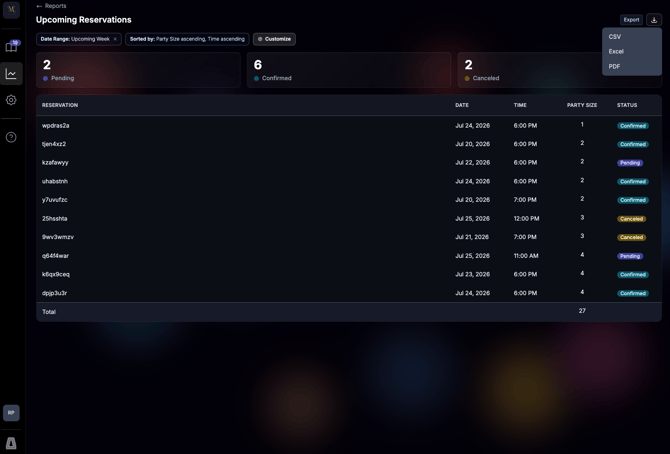
To visualize how your operation is tracking with Avvail, you can now configure and export reports with your financial and seat utilization data directly from your dashboard. The Reports tab of the dashboard allows you to choose from three reports: Upcoming Reservations, Past Reservations, and Monthly Statement. Once you select which report to view, you can change the date range and reservation statuses.
HOW TO OPTIMIZE YOUR REPORTS
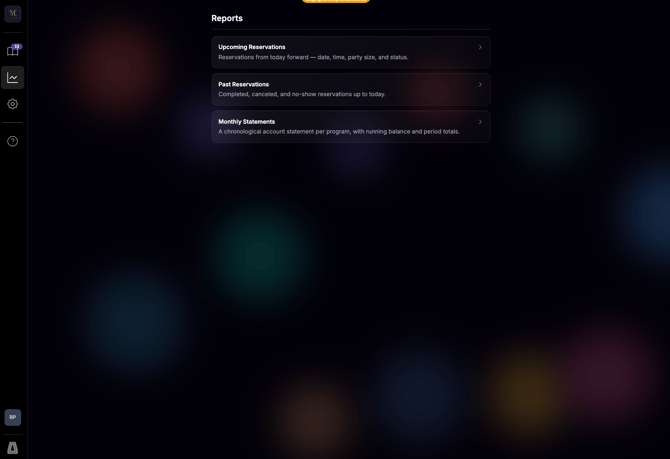
1. Select the report you'd like to view.
The Upcoming Reservations report shows all future booked and canceled reservations. The Past Reservations report shows all past booked and canceled reservations.. The Monthly Statement shows payment history and the amount of prepayment that has been burned by your restaurant by each reservation.
NOTE: Only users with Account Owner or Billing Manager status can view the Monthly Statements report. To update your team members' permissions, email support@avvail.com.
2. Select your date range.
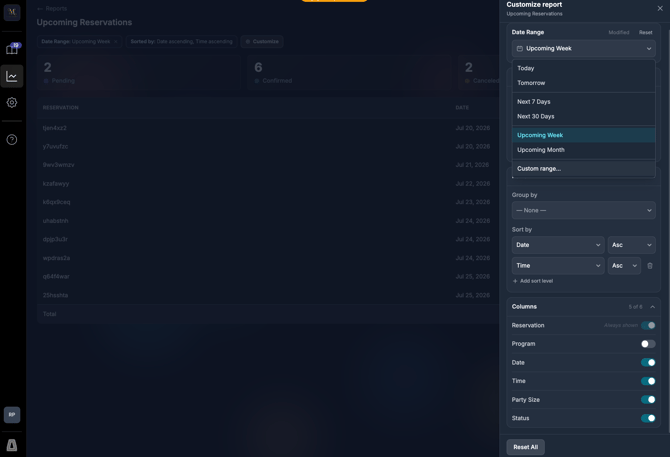
To customize the date range of your reports, click into "Date Range" or "Customize" and select the date range you'd like to view from the pre-set options or a Custom Range.
3. Select the reservation statuses.
For Upcoming Reservations, you can select Pending, Confirmed, and Canceled. For Past Reservations, you can select Completed, Canceled, and No-Show.
4. Make any other selections you would like to customize your report.
You can select Rows, Columns, and Filters to your needs.
5. Export your reports by clicking on your desired format in the top right corner.
You can export as a PDF, Excel, or CSV.