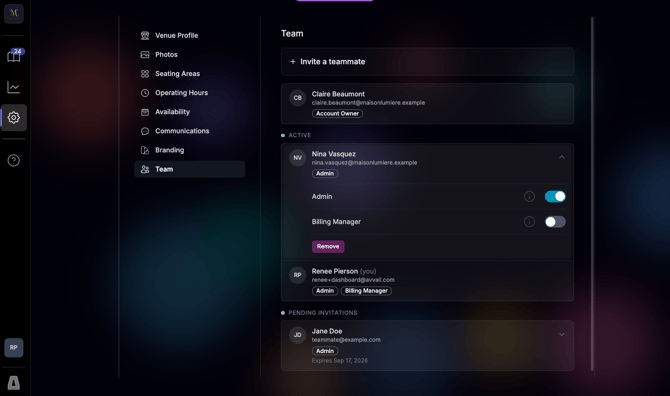
As an Admin user, you can invite as many team members to the Avvail platform as you would like. There are several potential permission sets that you can assign to users that give them access to different types of information in the dashboard.
STEPS TO INVITE AN EMPLOYEE TO AVVAIL
1. Navigate to the Team page in the Settings tab of your dashboard.
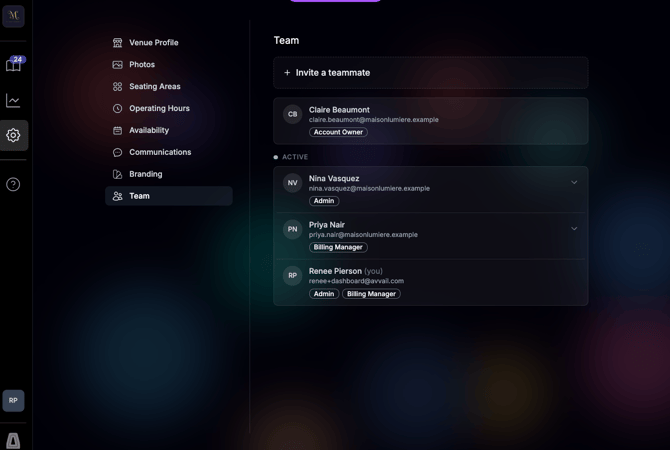
Here, you can see all of the existing team members and their permission sets. You can also view their status (pending, active) and remove access.
2. Click "+ Invite a teammate" and enter the teammate's name and email.
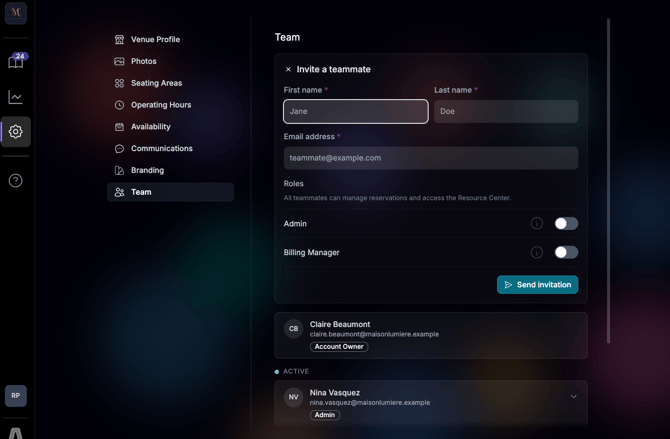
3. Select your preferred permissions.
The permission sets are as follows:
- Standard (Default): Authority to manage reservations.
- Admin: Authority to manage reservations and view Reports (including Monthly Statements).
- Billing Manager: Authority to manage reservations, update settings, and view Reports (excluding Monthly Statements).
4. Click "Send Invitation."
Once sent, the status of the invitation will be shown in the dashboard.
5. To remove access, expand the teammate's card and click "Remove."