---
title: Managing incoming reservations
description: How to accept a reservation in your Avvail dashboard, including adding the reservation to your TMS (with specific guidance for Resy, SevenRooms and OpenTable).
---
[Skip to content](https://avvail.com/support/accepting-an-incoming-reservation-0#main-content)
English
Show submenu for translations

Open main navigation
Close main navigation
- English
Show submenu for translations
- Contact us
Contact us
How can we help you?
- There are no suggestions because the search field is empty.
1. [Restaurant Resource Center](https://avvail.com/support?hsLang=en)
2. [Managing Reservations](https://avvail.com/support/managing-reservations?hsLang=en)
# Managing incoming reservations
## Enter all new reservations into your TMS system using the Avvail ID as the email address.
Incoming reservations will be shared with you via a Daily Reservation Summary email (for more information, refer to this [support article](https://avvail.com/support/incoming-avvail-reservations?hsLang=en)) and appear in real-time on your Avvail dashboard. If you would like the Avvail team to enter reservations into your system on your behalf, reach out to [support@avvail.com](mailto:support@avvail.com) to set up this service.
#### STEPS TO CONFIRM A RESERVATION
##### **1. Enter the reservation into your TMS.**
For specific guidance, refer to these support articles on how to enter Avvail reservations into [OpenTable,](https://avvail.com/support/how-to-book-avvail-reservations-in-opentable?hsLang=en) [Resy](https://avvail.com/support/booking-avvail-reservations-in-resyos-using-book-on-behalf-of?hsLang=en), or [SevenRooms](https://avvail.com/support/adding-reservations-to-sevenrooms?hsLang=en).
After receiving a reservation from Avvail in the [Reservations](https://dashboard.avvail.com/reservations) page of your dashboard, click into the reservation and click the email address (from an @avvail.id domain) to copy to your clipboard. Then enter the reservation into your table management system (TMS).
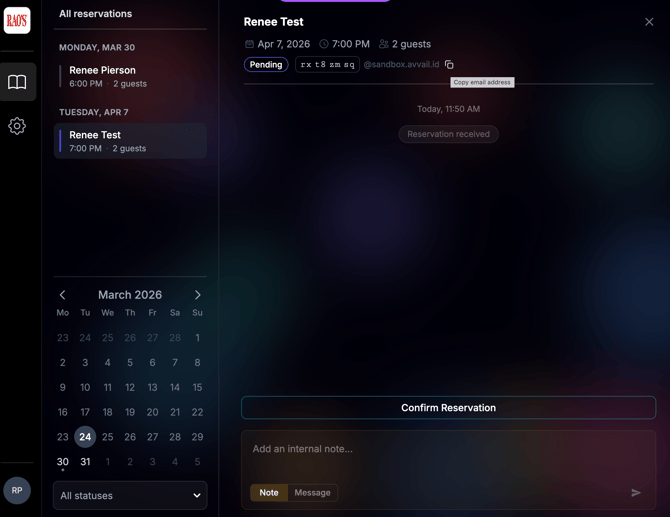
If using OpenTable or SevenRooms, input the reservation as you normally would and include all required guest details and notes. You will have to use the Avvail phone number (212) 589-8654 to create the guest's profile. For more information on adding reservations to OpenTable, refer to this [support article](https://avvail.com/support/how-to-book-avvail-reservations-in-opentable?hsLang=en). For more information on adding reservations to SevenRooms, refer to this [support article](https://avvail.com/support/adding-reservations-to-sevenrooms?hsLang=en).
If using Resy, add the reservation using the "Book on Behalf Of" process and include all required guest details and notes. For more information on adding reservations to Resy, refer to this [support article](https://avvail.com/support/booking-avvail-reservations-in-resyos-using-book-on-behalf-of?hsLang=en).
If using another TMS, reach out to the Avvail support team at [support@avvail.com](mailto:support@avvail.com) for specific guidance.
##### 2. Confirm that the reservation details were entered correctly into your TMS.
If reservation details are entered incorrectly to your TMS (e.g. date, party size, guest name, etc.) you will receive a notification that the reservation needs to be reviewed. This notification will provide details about what was entered incorrectly.
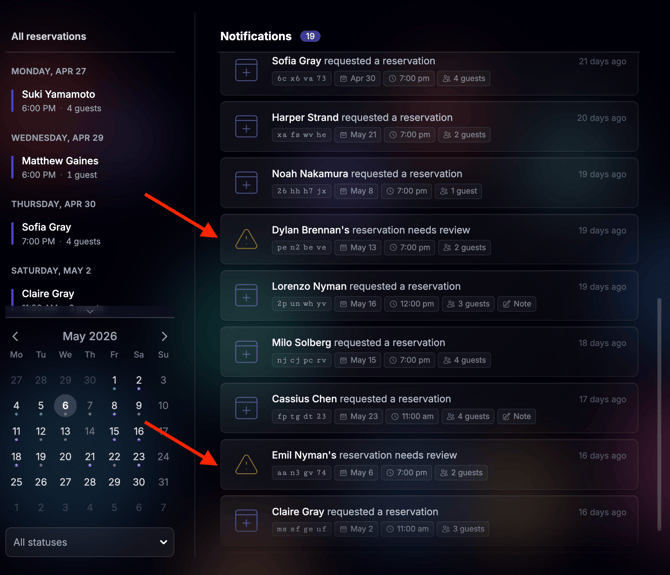
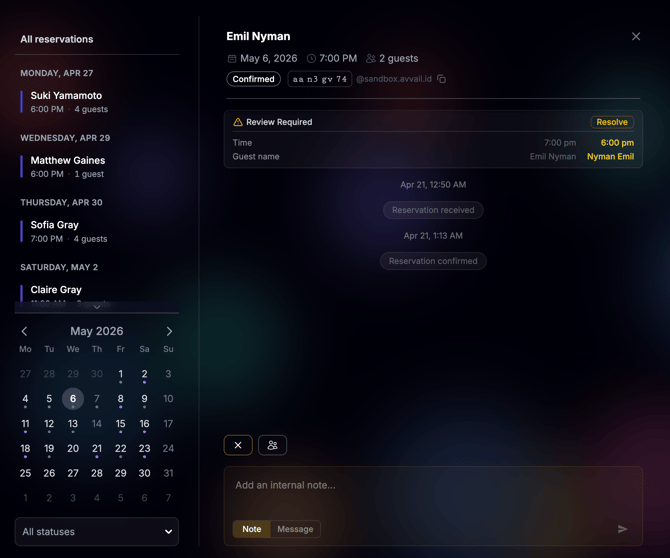
As of April 2026, all reservations added to your TMS will be automatically acknowledged by our system. However, if this feature is not in service, follow these steps.
##### **3. Click "Confirm Reservation" at the bottom of the screen to confirm that the reservation has been added to your TMS.**
**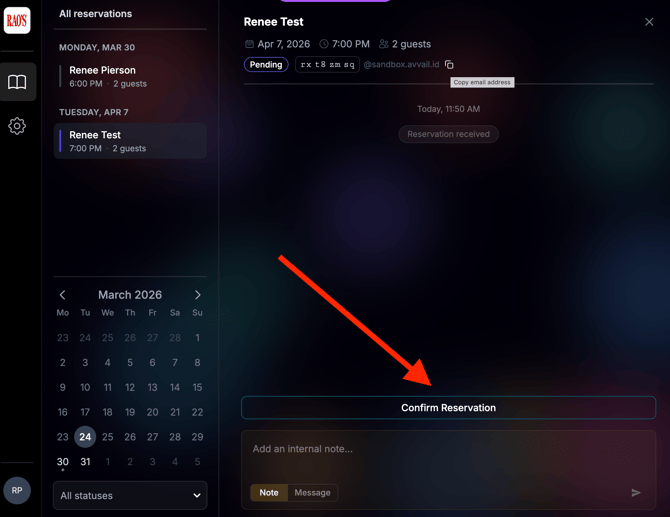**
After entering into your TMS, revert back to the Reservations tab of your Avvail dashboard. Confirm the reservation has been entered to your TMS by clicking on the reservation and selecting "Confirm Reservation."
NOTE: It is crucial to complete all reservations at the end of the shift to ensure that you will be credited for all fulfilled seats. For more information on completing reservations, refer to this [support article](https://avvail.com/support/steps-to-complete-a-reservation-0?hsLang=en).
- [Account Settings](https://avvail.com/support/account-settings?hsLang=en)
- [Managing Reservations](https://avvail.com/support/managing-reservations?hsLang=en)
- [Reporting](https://avvail.com/support/reporting?hsLang=en)
- [TMS Setup](https://avvail.com/support/tms-setup?hsLang=en#main-content)
- [OpenTable](https://avvail.com/support/tms-setup?hsLang=en#opentable)
- [Resy](https://avvail.com/support/tms-setup?hsLang=en#resy)
- [SevenRooms](https://avvail.com/support/tms-setup?hsLang=en#sevenrooms)
- [FAQs](https://avvail.com/support/faqs?hsLang=en#main-content)
- [Terms of Agreement](https://avvail.com/support/faqs?hsLang=en#terms-of-agreement)
- [Cancellations & No Shows](https://avvail.com/support/faqs?hsLang=en#cancellations-no-shows)
[](https://avvail.com?hsLang=en)
[mailto:email@email.com](mailto:email@email.com)
Copyright © 2025, Guest.Tech